Quote Creation on Mobile
Generate professional quotes directly from your mobile device while working in the field. Field agents can quickly draft, customize, and deliver quotes on site to streamline client approvals and keep jobs moving forward.
Prerequisite: Administrator must enable the quote feature in the ReachOut web app settings before field agents can create quotes in the mobile app.
Create a Quote
- There are three ways you can create a quote in ReachOut.
- From the customer profile: Tap on the customer name from the Customers menu and the three dots icon, and tap Create Quote.
- From the customer list: Tap the three dots icon next to any customer and select Create Quote.
- From the Quotes tab within the customer profile: Tap the + icon.
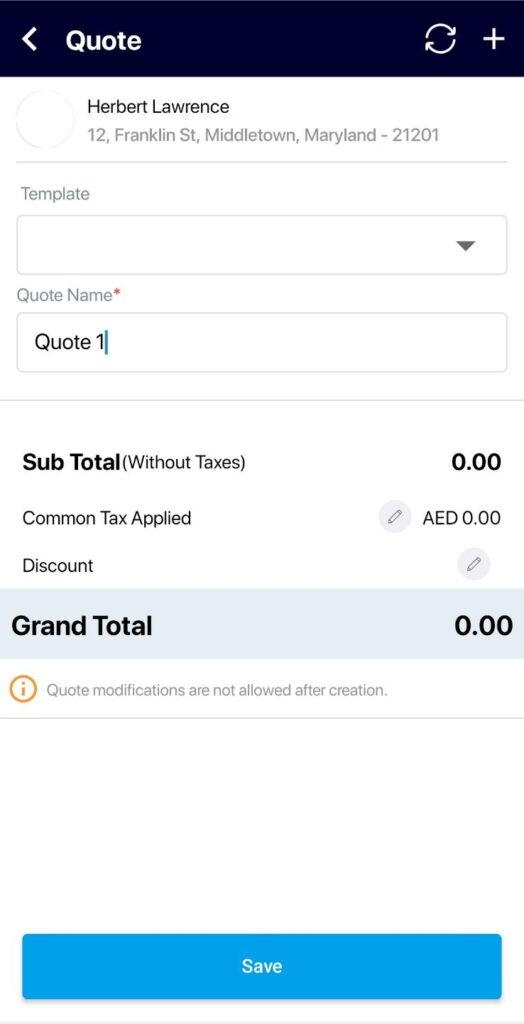
- In the Create Quote screen, fill in the details:
- Customer Location: Choose the job site or location for this quote.
- Template: Select a quote template based on which the quote details will be auto-filled. Else, you may enter details manually.
- Name: Enter a descriptive name for the quote.
- Tap on the Add button on the top right to add items to the quote.
- The Add New Item page opens, where you may add the item details, tax, and quantity.
- Click the Add button to add the item to the quote.
- Tap Save.
Collecting Customer Signature
Once you save a quote, tap the Collect Customer Signature button to get immediate, on-site approval from your client.
Viewing existing quotes
To review the previous quotes for a client, open their details page and tap the Quotes tab. ReachOut lists all quotes with the most recent ones at the top.
Creating quotes directly in the field speeds up your workflow and keeps your clients informed without delay. By capturing signatures on-site, your team can move jobs forward faster and deliver a seamless service experience from start to finish.