Creation of Quotes
A quote is a document provided by a service provider to customers, outlining details such as the product or service name, quantity, pricing, total cost, and any applicable taxes. You can create quotes quickly using a quote template, which includes a predefined set of items or services.
Creating a Quote
You can add a new quote in two ways:
- Click + Create from the top navigation and click + Quote, or
- Go to CRM > Quotes and select + Quote.

Add Quote Details
- Add customer details.
- Select an existing customer, or
- Choose + Create New Customer to add one.
- Select a quote template or source (Work Order, Inspection, Ticket) based on which the quote items have to be displayed.
- Under Quote Details, enter a Quote Name and select a source for your created quote from the drop-down.
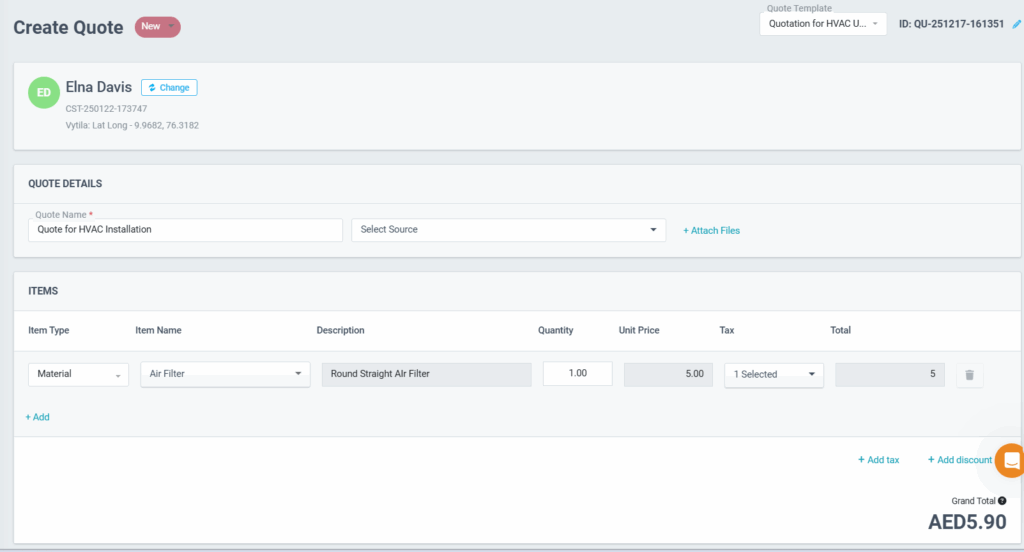
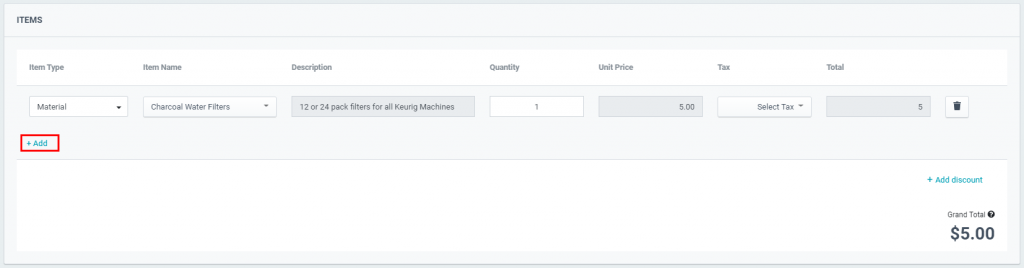
- Now, begin adding items to your quote by clicking + Add.
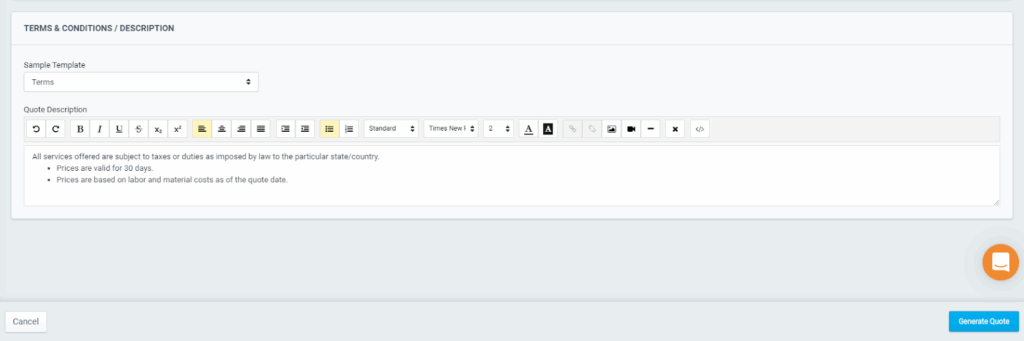
- Under Terms & Conditions, select the template you have created for terms & conditions by clicking the Sample Template drop-down. You can even add more details to the terms & conditions using the text editor.
- Once done, click Generate Quote.
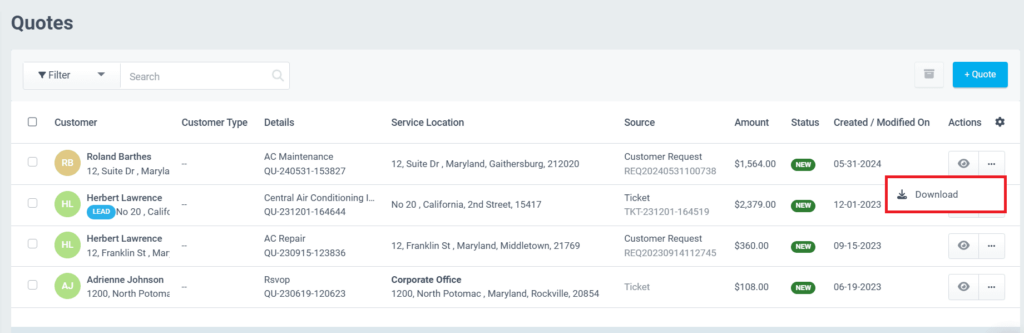
- You can view the newly created quotation in the Quotes menu.
- Click on the View icon or the ‘Customer Name’ to view the created quote.
- To download the quote, click on the three dots in the Actions column.
- Admin can share this Quote with the customer by:
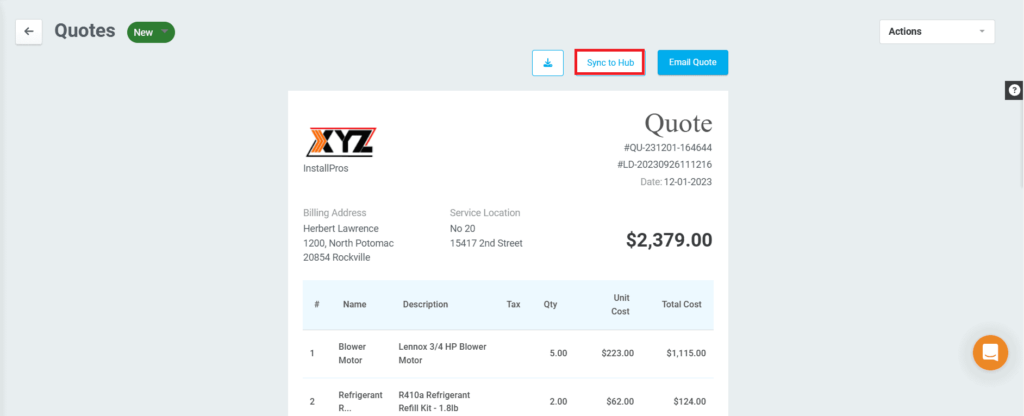
- Clicking on the Sync to Hub button on the Quotes page.
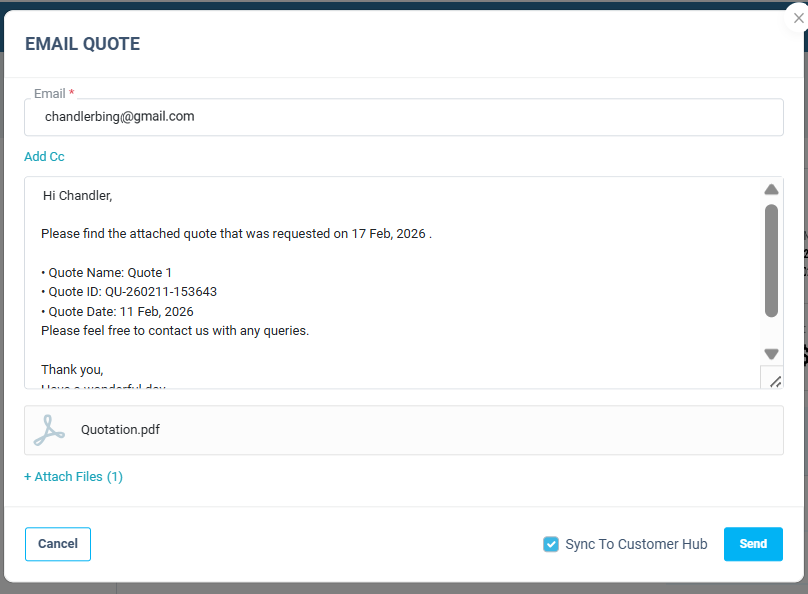
- Tick the Sync to Customer Hub option while sending the quote to the customer.
- The quotes synced will be displayed in the Quotes tab of the Customer Hub.
Emailing Quotes
To email a quotation:
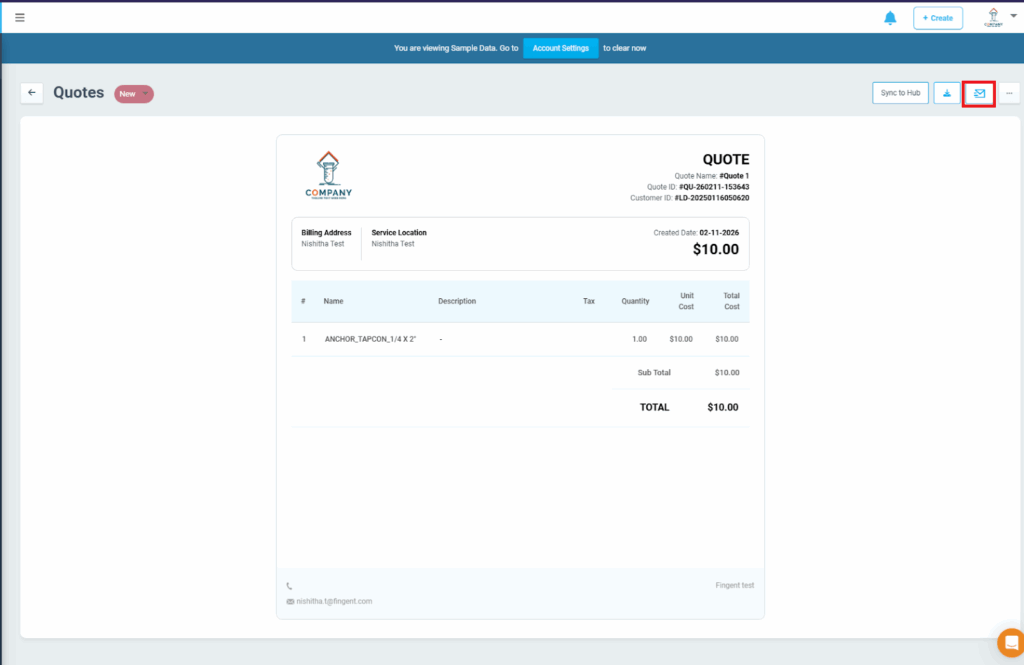
- Navigate to Quotes and click View against the quote.
- Click the Email Quote button.
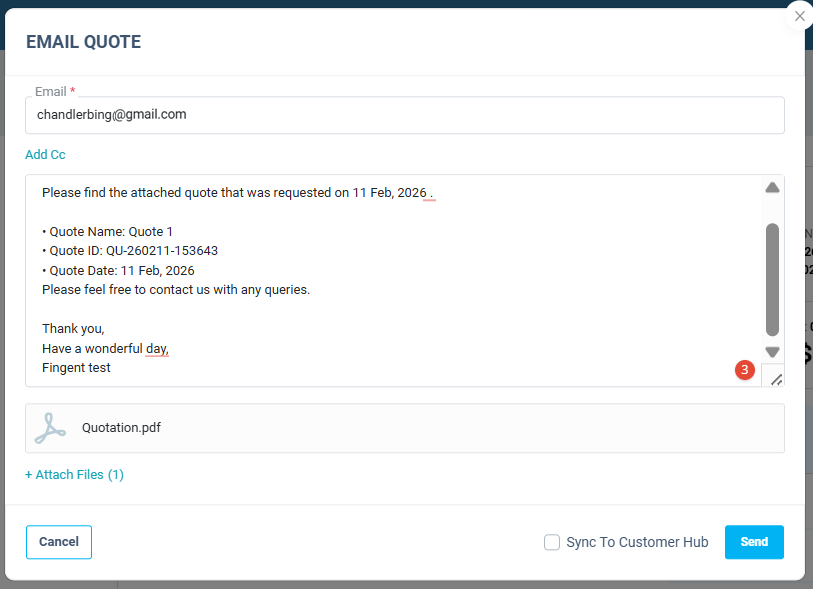
- Enter the recipient email address and message in the respective fields.
- Click on the Attach file(s) icon to add additional attachments to the quote.
- Click Send to send the quote.
Note: Configure your business email address before sending the quote.
Assigning Statuses
Quote statuses help to track the lifecycle of a quote, such as New, Pending, or Approved.
- Go to – Settings > Customization > Quotes
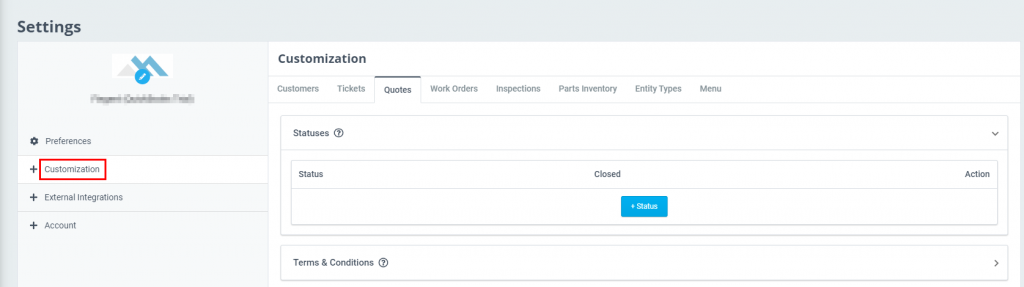
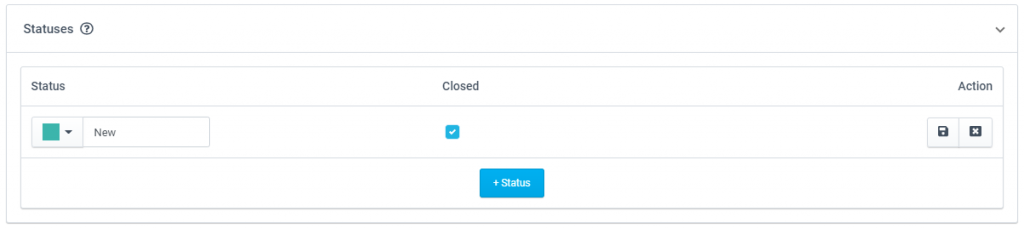
- Under Status, click on + Status. Enter a status name and pick a color to assign a color code for the status.
- Indicate if the status is to be treated as “Closed” by putting a check mark in the Closed column. Then, click the Save button.
Configuring Terms & Conditions
It is also important to include the Terms & Conditions (T’s & C’s) while creating a quote. Usually, companies provide standard T’s & C’s of service as part of a quote, but ReachOut also lets you modify the terms for a specific quote.

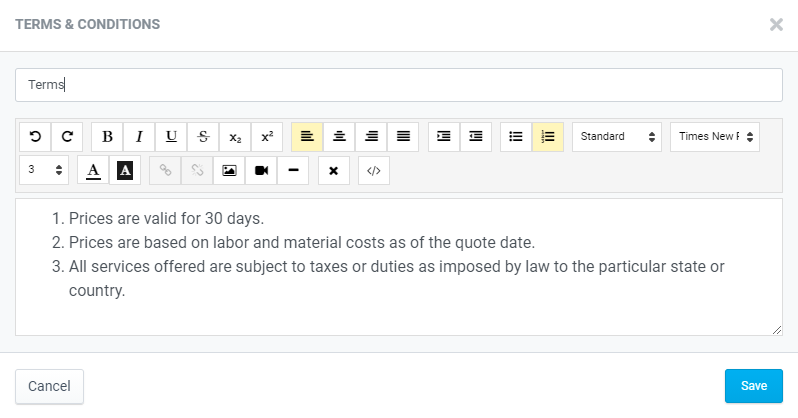
- Under Terms & Conditions, click on + Add new terms and conditions, which will open a text editor.
- Enter a title and your prepared terms & conditions in the respective fields and click Save.
ReachOut makes it easy to create, customize, and share quotes with customers.